Retro-Geekeries: copy-paste with tmux on an old eeePC
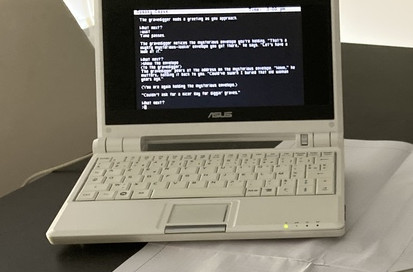
Ah, the Eee PC 4G. Compact, silent, but also strictly limited with its few gigabytes of storage and anemic processor. To give it a second life as a mobile terminal, I installed Alpine Linux in terminal-only mode on it.
But how do you copy-paste text on such a modest machine (without overloading it with unnecessary graphics)? The answer: tmux. And more specifically its little-known (and wrongly overlooked) but powerful feature: copy mode.
Why tmux?
On an Eee PC 4G with only 4 GB of SSD and 512 MB of RAM fixed (upgraded to 1 GB for me) — not to mention the few hundred megabytes eaten by the system itself — every resource counts. A lightweight IDE like VS Code simply has no place here: too greedy for RAM and CPU for what’s installed (that famous Celeron M @ 900 MHz is not going to get any younger).
tmux brings several major advantages in this minimalist context:
- Works in a terminal — No need to launch Wayland or Xorg: the Linux console suffices.
- Session persistence — If the remote connection drops, my processes keep running.
- Multi-tasking/multi-window — That’s even the very reason for tmux’s existence.
- An integrated navigation and copy-paste system, capable of copying displayed text without even needing a mouse.
The “copy” mode: Ctrl+B [
The game-changing feature is tmux’s copy mode.
First of all, activate the “vi” mode, enabling easier keyboards shortcuts. Add the following line to the .tmux.conf file:
setw -g mode-keys vi
Then to enter copy mode, simply type the following key sequence in the terminal where your tmux session is open:
Ctrl+B [
Once this sequence is entered, we switch to “navigation” mode. The terminal screen freezes — and here begins the really useful part.
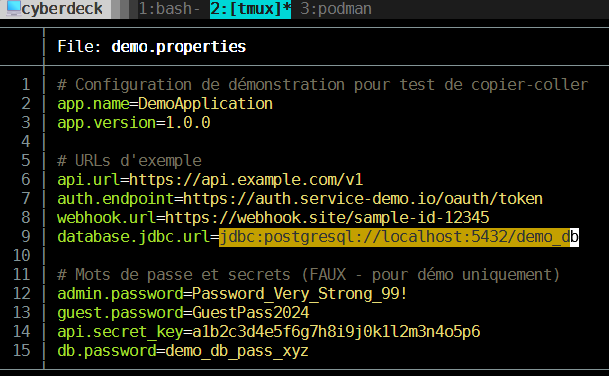
You can now:
- Navigate with the arrow keys (or
h/j/k/l). - Activate selection mode by pressing
Spacethen select by moving around in the terminal. - Copy to clipboard by pressing
Enter.
The principle is simple and elegant: you read what’s displayed (an ls output, a configuration snippet, any error) and copy whatever you need
without having to open anything. No editor to launch, no extra processes. On hardware as limited as the Eee PC 4G
that’s exactly the kind of tools that make the difference between “it works” and “I have to install things that slow everything down”.
Pasting: Ctrl+B ]
You can now go to another tmux window/session and once you’ve navigated to where you want to insert your text, simply type:
Ctrl+B ]
And it pastes exactly what you selected. Without having opened any application, without going through the system clipboard… everything is done within tmux.
Concrete example on the Eee PC 4G
To illustrate concretely what this enables on my machine: here’s a typical extract from my eeePC currently running Alpine Linux in terminal mode. I’m connected via SSH to another PC within a tmux session, and when I need to copy text that appears in the remote SSH session, I proceed as follows:
# Navigate within it and run your usual commands
ls /var/log | grep syslog
cat ~/.config/something.conf

# To copy: Ctrl+B [ then navigate with arrows (or h/j/k/l)
# Then select text on the keyboard: press space, move around, then enter

# Navigate to another tmux session (e.g. Ctrl+B n), potentially on another SSH session
cat >> ~/.config/other.conf
# and finally Ctrl+B ] to paste into another window.
In this example I’m simply recovering an entry from a configuration file. It’s much faster to navigate directly within the terminal output than to open a file with an editor, find it… especially on an eeePC.
Why this works so well on old hardware
The Eee PC 4G is now quite old. But tmux works perfectly because:
- It’s pure terminal — no graphical overhead or extra processes.
- Memory usage is minimal — tmux consumes a few MB and everything else goes to the real applications you launch (Vim, grep, wget…).
- SSH networking lets you control the machine remotely, so you can work on a modern PC while keeping a persistent session on the eeePC.
This is exactly the kind of minimalist trick that saves the day in retro-computing: few tools, well mastered, to go far with very little.
Until the next Retro-Geekeries!